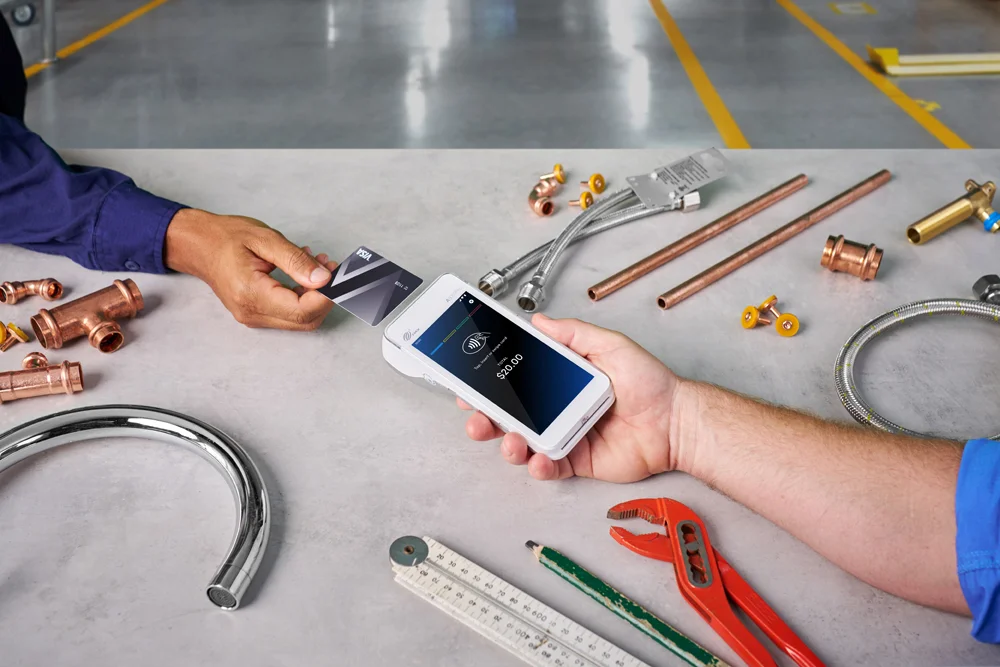

We live in a connected world, but sometimes technology fails. We’ve made sure that even if one network is down, you can always switch on your terminal to another network. We want to ensure that you can always take payments, so when technology is down, your business isn’t.
To change how your terminal connects to the internet, follow the instructions below.
3G Connection
- Select MENU
- Select MISCELLANEOUS (7)
- Scroll DOWN and select COMMS SETTINGS (8)
- Select CHANGE COMMS TYPE (6)
- Select 3G GPRS
- Your terminal will reboot
- Your terminal is now ready to take payments via a 3G connection
Wi-Fi Connection
- Select MENU
- Select MISCELLANEOUS (7)
- Scroll DOWN and select COMMS SETTINGS (8)
- Select CHANGE COMMS TYPE (6)
- Select Wi-Fi
- Your terminal will reboot
- Select SCAN – your terminal will scan for available Wi-Fi networks
- Select your Wi-Fi network
- Enter your Wi-Fi password
- Your terminal is now ready to take payments via the connected Wi-Fi network
Base Ethernet Connection
- Select MENU
- Select MISCELLANEOUS (7)
- Scroll DOWN and select COMMS SETTINGS (8)
- Select CHANGE COMMS TYPE (6)
- Select BASE ETHERNET
- Your terminal will reboot
- Place your terminal onto your B210 base station (This can be purchased online)
- Select QUICK
- The screen will display “Terminal will connect to B210_XXXX
- Check this corresponds with your B210 unit – Press YES to confirm
- Your terminal is now ready to take payments via Bluetooth from your base station. Your base station will need to be connected to the internet to take payments.